
After nearly a decade of reliable service, Microsoft will officially end support for Windows 10 on October 14, 2025. If you are still running this operating system (OS) on your personal or business computers, now is the perfect time to plan your next steps—whether that involves upgrading to a newer version of Windows, leveraging the Extended Security Updates program, or exploring alternative systems.
What Does “End of Support” Actually Mean?
When Microsoft ends support for any OS, it essentially ceases its commitment to maintaining the system's ongoing health and security. After the October 2025 deadline, it means:
- No more security updates: Your PC will become significantly more vulnerable to new malware, viruses, and exploits that cybercriminals develop. Security is the paramount concern.
- No technical assistance from Microsoft: Official support channels will no longer offer troubleshooting or technical help for the older operating system.
- No bug fixes or performance patches: Any non-security bugs or performance issues discovered after the date will remain permanently unaddressed.
You will still be able to use the OS, but your device will gradually become unsafe, especially for sensitive tasks like online banking, business use, or storing proprietary data.
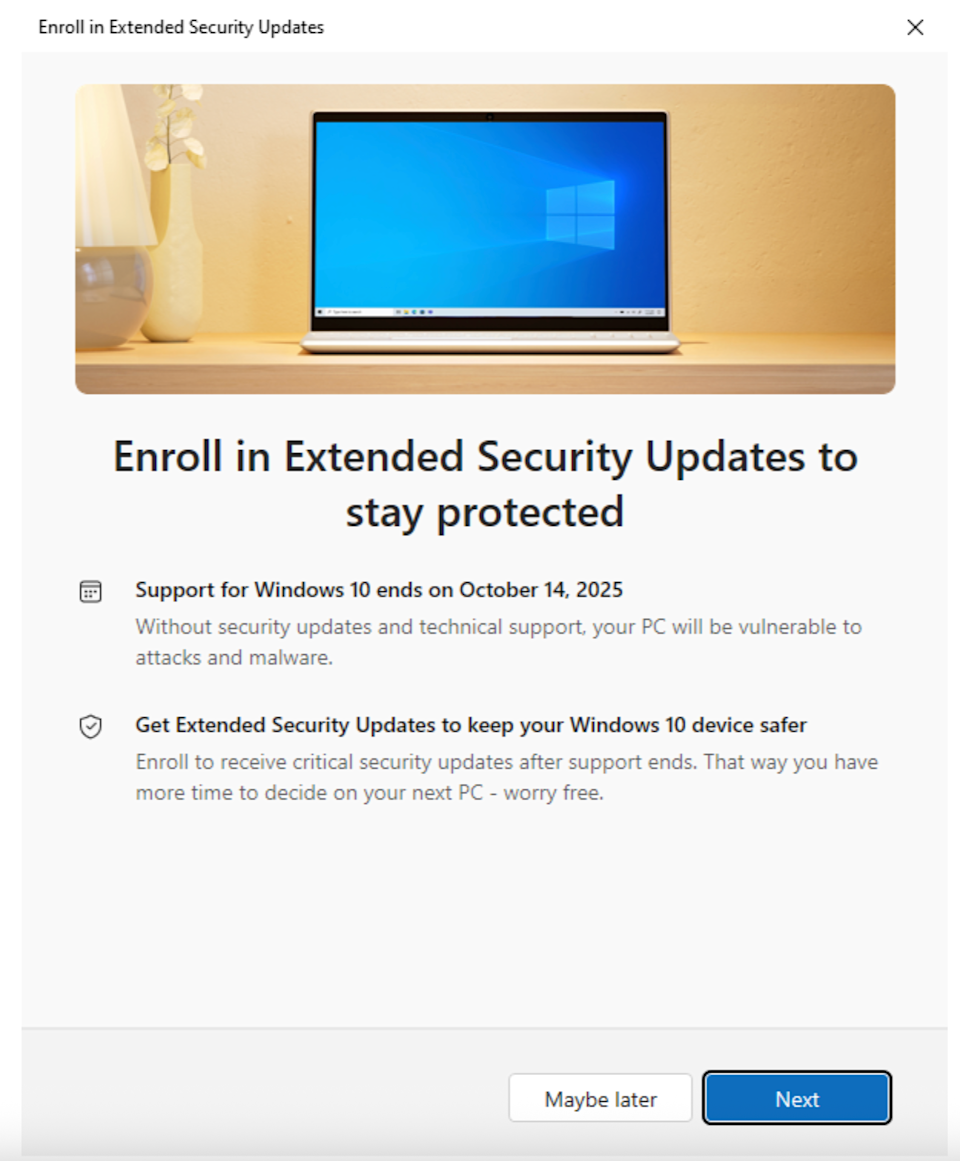
Windows 10 will continue to function, but without security updates after October 2025.
Why Microsoft Is Ending Windows 10 Support
The lifecycle for most major software releases, including this version of Windows, typically spans about a decade. Windows 10 was first launched in 2015, making 2025 a natural endpoint.
With the release of Windows 11, the company is now focusing its development and resources on advanced features related to performance, enhanced security protocols, and next-generation AI-based functionality that the older architecture simply cannot fully support. In short, the previous generation of computing had a great run, but it’s time for a modernized upgrade.
Your Options After Windows 10
1. Upgrade to Windows 11
If your computer meets the TPM 2.0 and Secure Boot requirements, you can upgrade for free. Go to Settings → Update & Security → Windows Update and check if your PC is eligible for Windows 11.
Understanding Compatibility Requirements
Windows 11 introduced stricter hardware requirements to enhance system security and performance. The two non-negotiable requirements are Trusted Platform Module (TPM) 2.0 and Secure Boot capability. TPM is a security chip that provides hardware-level protection for cryptographic keys and other sensitive data. Without these, a PC cannot officially run the newer operating system. Microsoft provides a comprehensive list of Windows 11 system requirements.
2. Buy a New PC
If your device doesn’t meet the requirements, consider a new PC that ships with Windows 11 preinstalled. This ensures long-term compatibility and better performance.
3. Switch to Linux or ChromeOS Flex
For older computers, you can install:
- Linux Mint or Ubuntu — for a full desktop experience.
- ChromeOS Flex — lightweight, secure, and ideal for browsing or educational use.
Extended Security Updates (ESU)
Microsoft has confirmed that it will offer Extended Security Updates (ESU) for Windows 10 after October 2025 — available for both businesses and individual users.
That means you can still receive critical updates for a yearly subscription fee. However, these updates won’t add new features — they’re purely for security.
How to Prepare for the Transition
- Backup your data — use OneDrive, Google Drive, or an external drive.
- Check app compatibility — some older software might not work on Windows 11.
- Clean up your storage — uninstall unused apps and clear junk files.
- Create a recovery drive — use Microsoft’s Media Creation Tool.
Why You Shouldn’t Stay on Windows 10 After 2025
It might be tempting to keep using Windows 10, but here’s why it’s risky:
- Unpatched vulnerabilities can be exploited by malware.
- Many new apps and browsers will drop support.
- Hardware drivers may stop being updated.
"Using Windows 10 after 2025 is like driving an old car without insurance — it works, but you’re not protected."
The End of an Era: A New Beginning
Windows 10 defined a generation of computing — fast, familiar, and reliable. But as technology moves forward, embracing change will ensure your devices remain secure and powerful.
Whether you upgrade to Windows 11 or switch to another system, this is your chance to modernize and move ahead confidently.
💬 What’s Next for You?
Have you already planned your Windows 10 exit strategy? Share your thoughts in the comments below. I'll be writing some more on Windows OS here.